
Setup A Booking Calendar
Setup Personal Booking Calendar
Your personal booking calendar is your best friend when it comes to managing appointments. Once it's up, you'll wonder how you ever managed without it.
Navigate to Calendar > Calendar Settings.
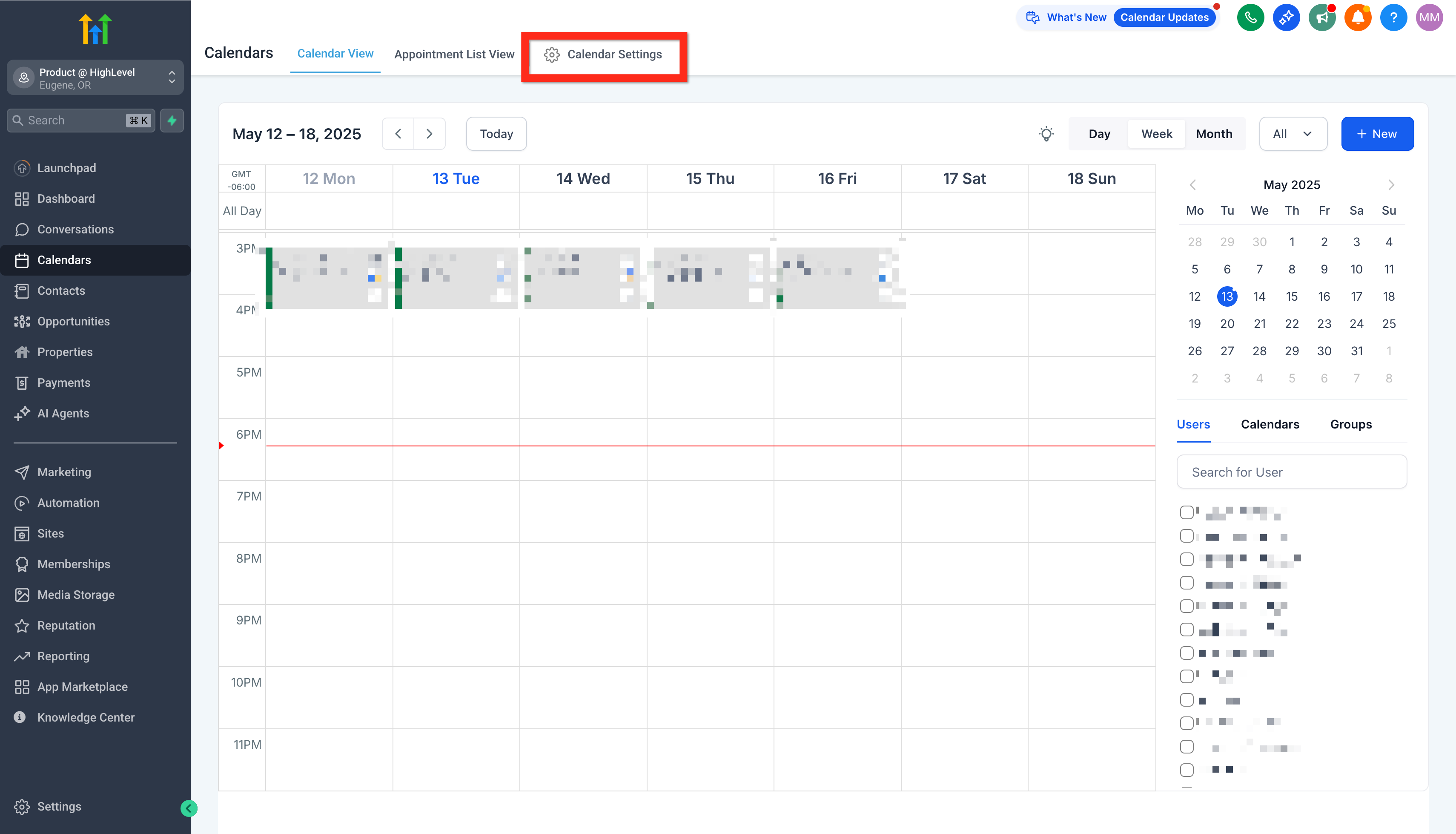
Click Create Calendar.
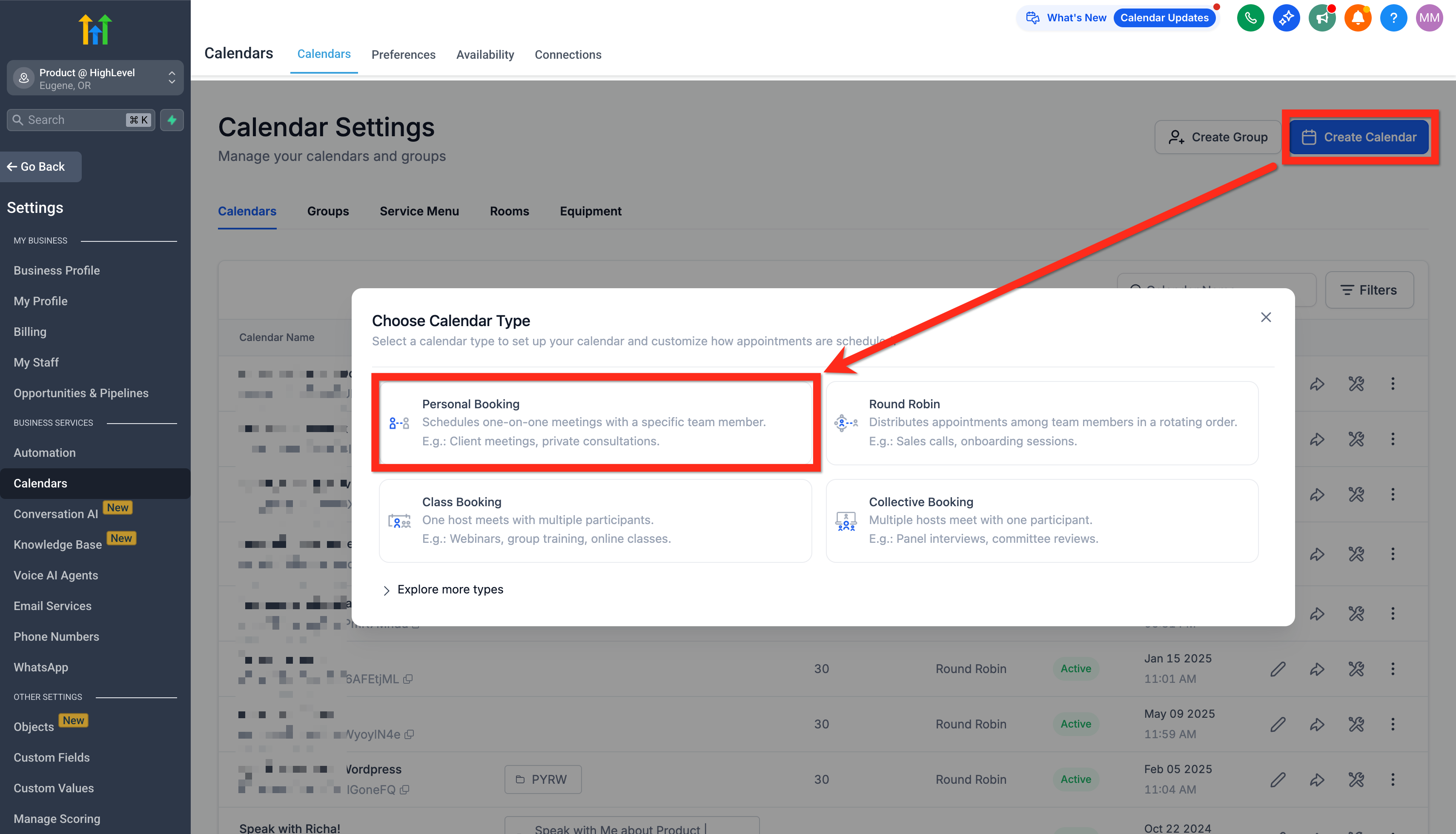
Select calendar type (for 1-on-1 meetings, choose Personal Booking).
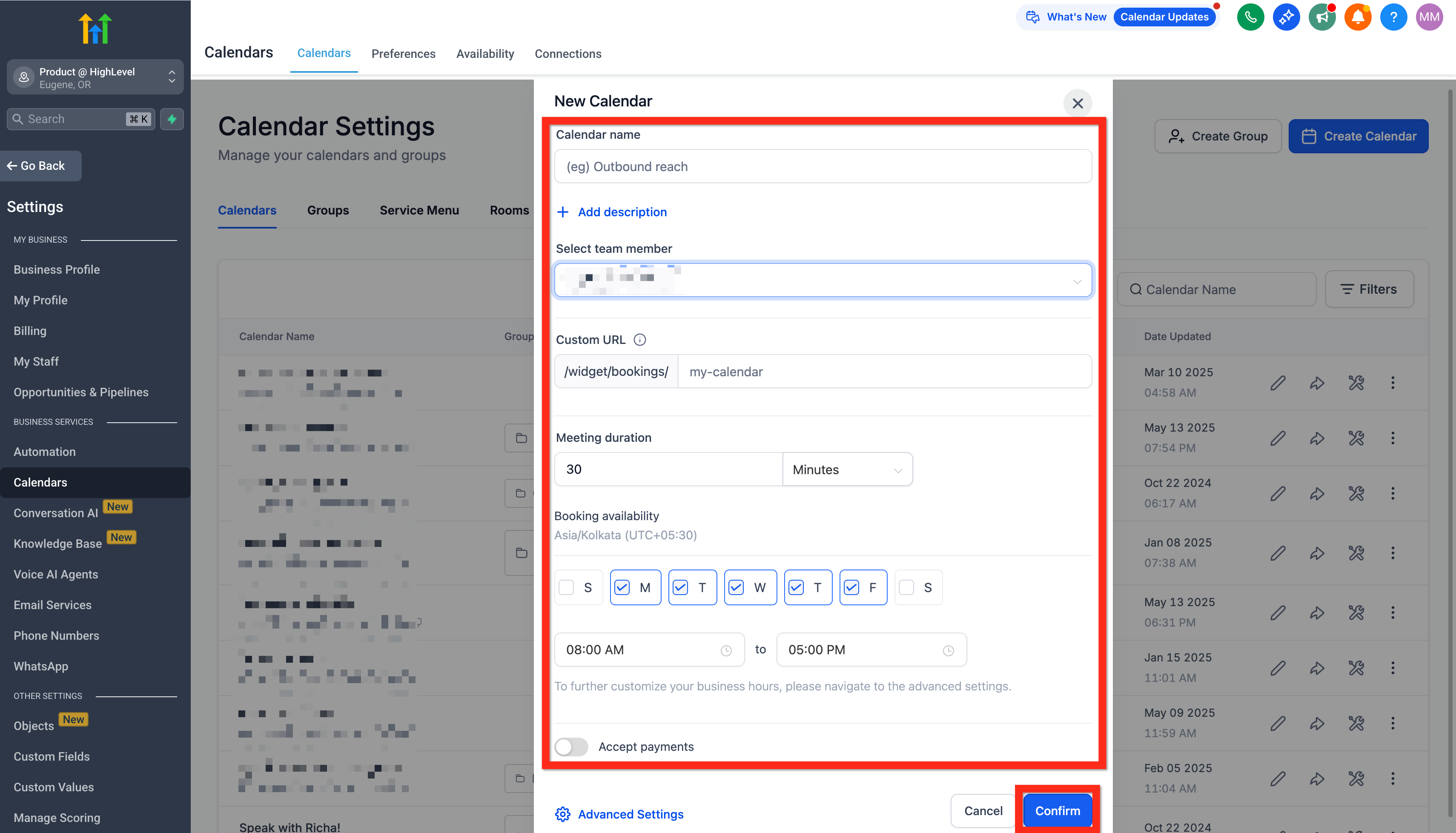
Fill in your calendar details (give it a friendly name, select yourself as the host, create a custom URL, specify appointment duration, and set your available hours).
Click Confirm.
Copy the calendar link or embed code.

Share the calendar link to start booking appointments!
Next, you can customize your calendar appearance to match your branding, making it even more inviting.
Add Yourself As A Team Member
Even if you're working solo, adding yourself as a team member ensures everything runs smoothly. Think of it as giving yourself VIP access to your own scheduling system.
Navigate to Settings > My Staff.
Click Add User.
Add yourself and save the details.
Next, you can set specific permissions for yourself or additional team members, streamlining your workflow.
Setup Automated Reminders
Automated reminders mean fewer missed appointments and happier clients. They’re like your calendar gently tapping clients on the shoulder to remind them you're meeting soon.
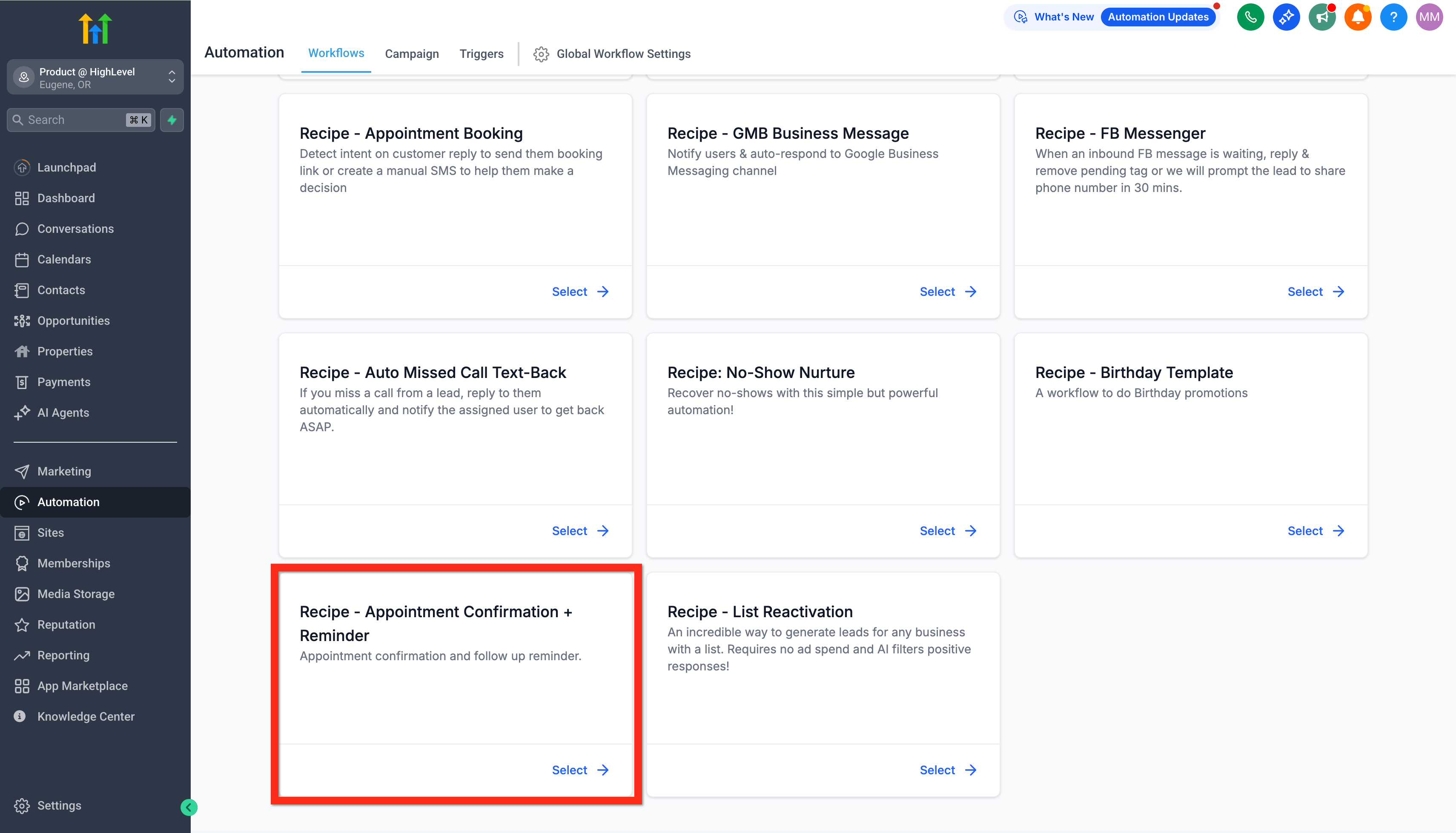
Navigate to Automation.
Click Create Workflow and select Recipe.
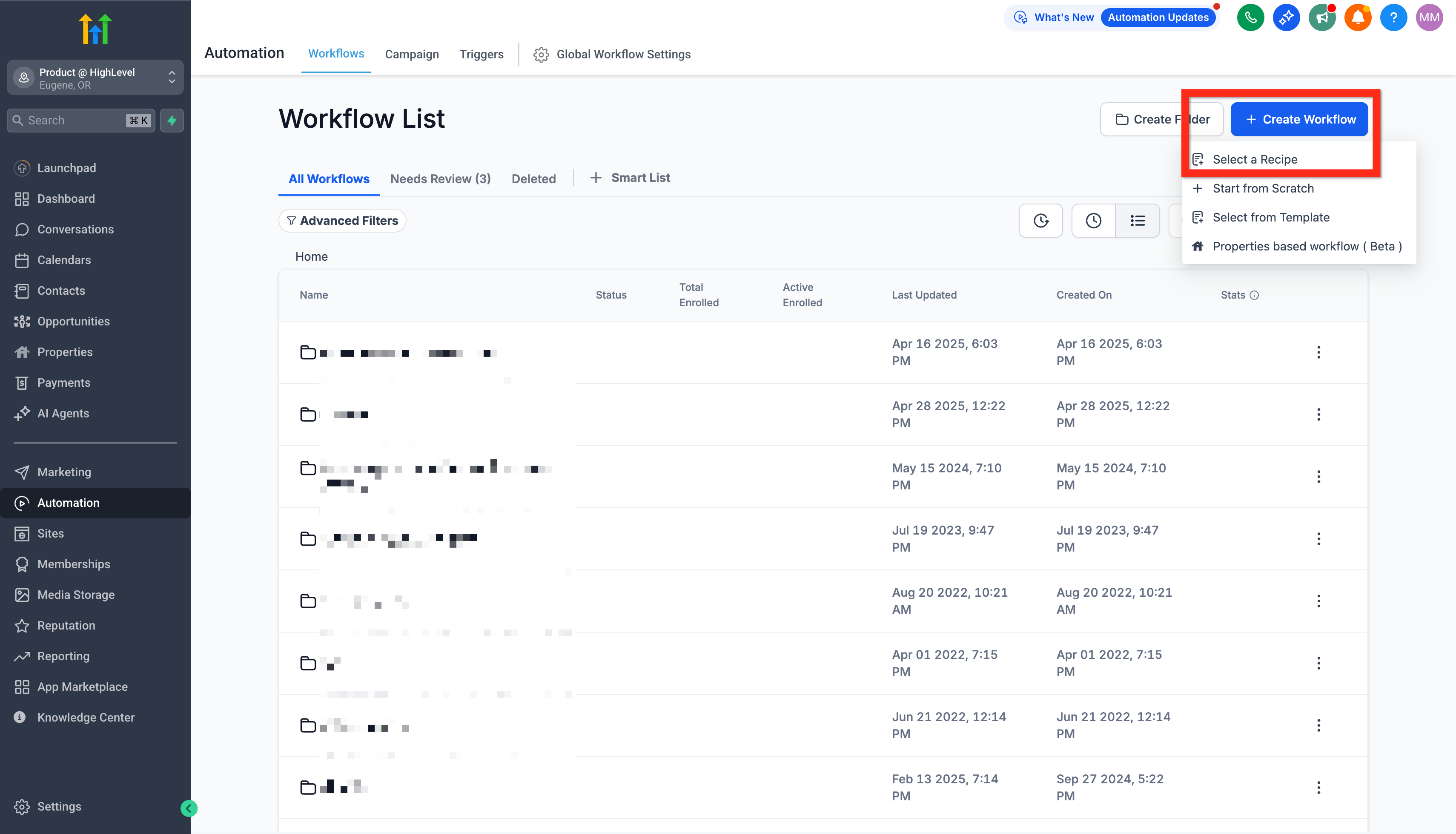
Choose the recipe Appointment Confirmation + Reminder.
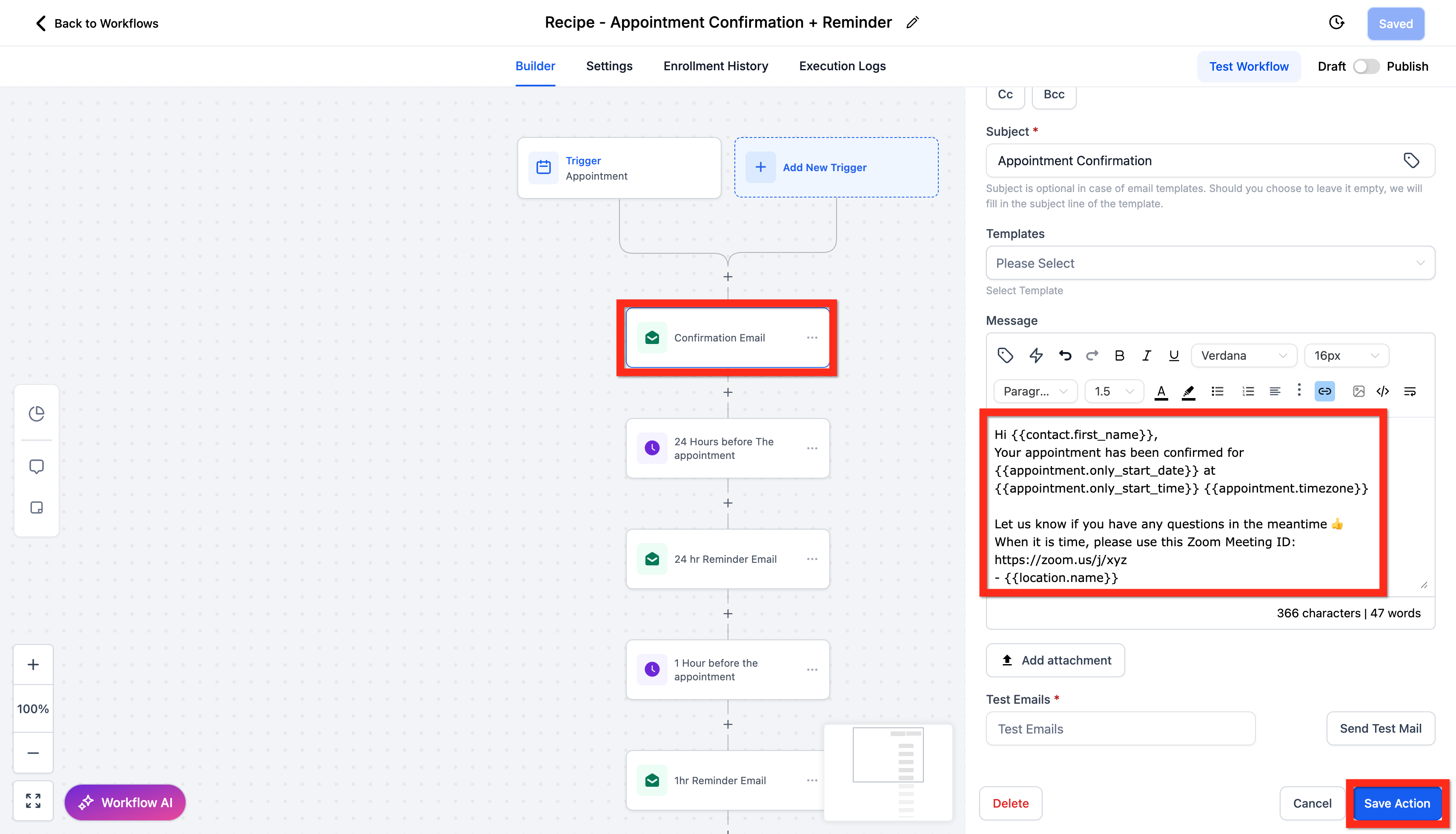
Edit the Confirmation Email action.
Update your meeting link (Zoom, Google Meet, etc.) and click Save Action.
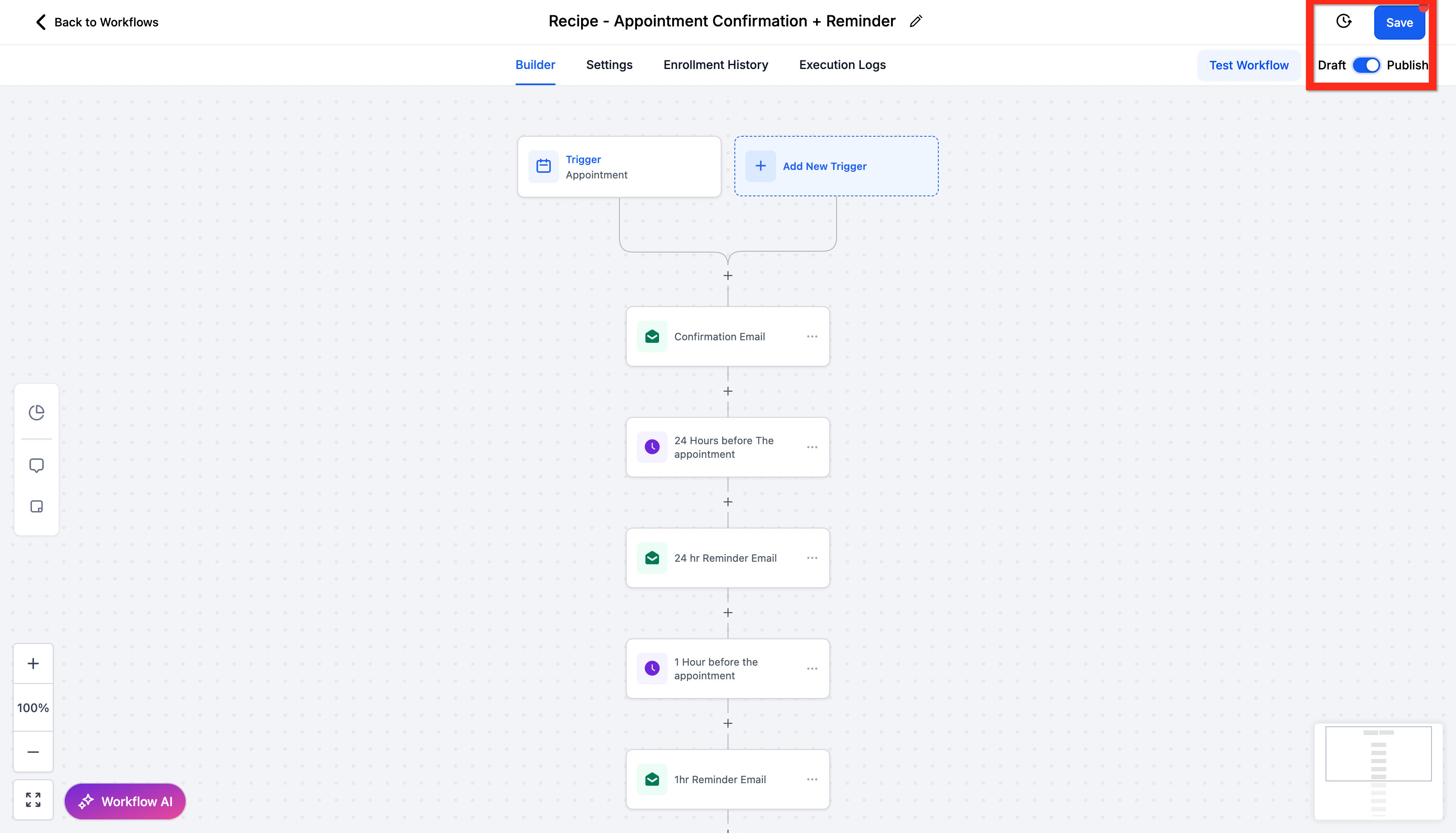
Review all actions.
Click Publish.
Click Save.
Next, consider customizing your reminders with personalized messages to build stronger client relationships.
Integrate Personal Calendar
Connecting your booking system with your personal calendar keeps everything in sync. No more double-booking or missed meetings, just effortless organization.
Navigate to Calendars > Calendar Settings.
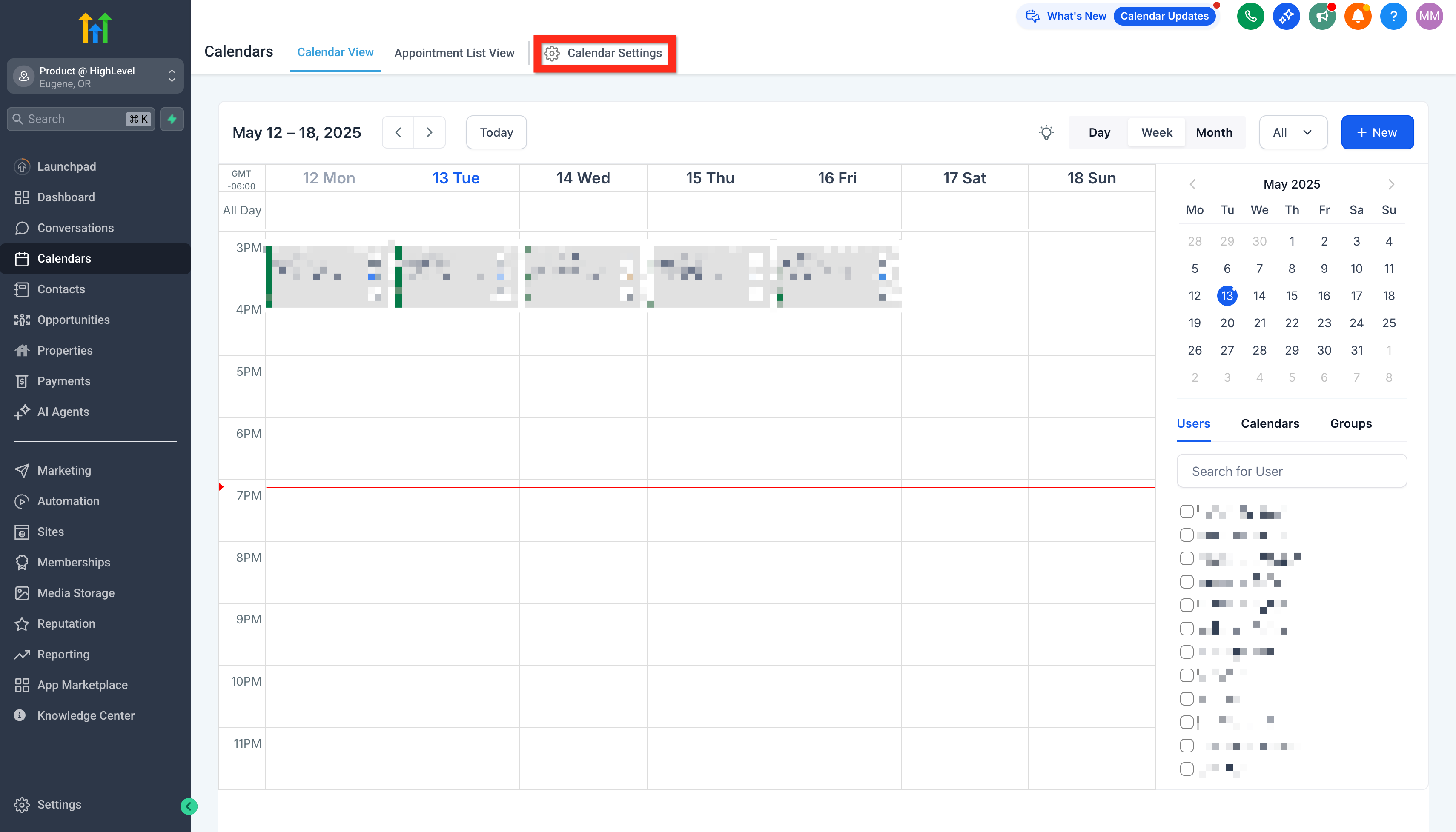
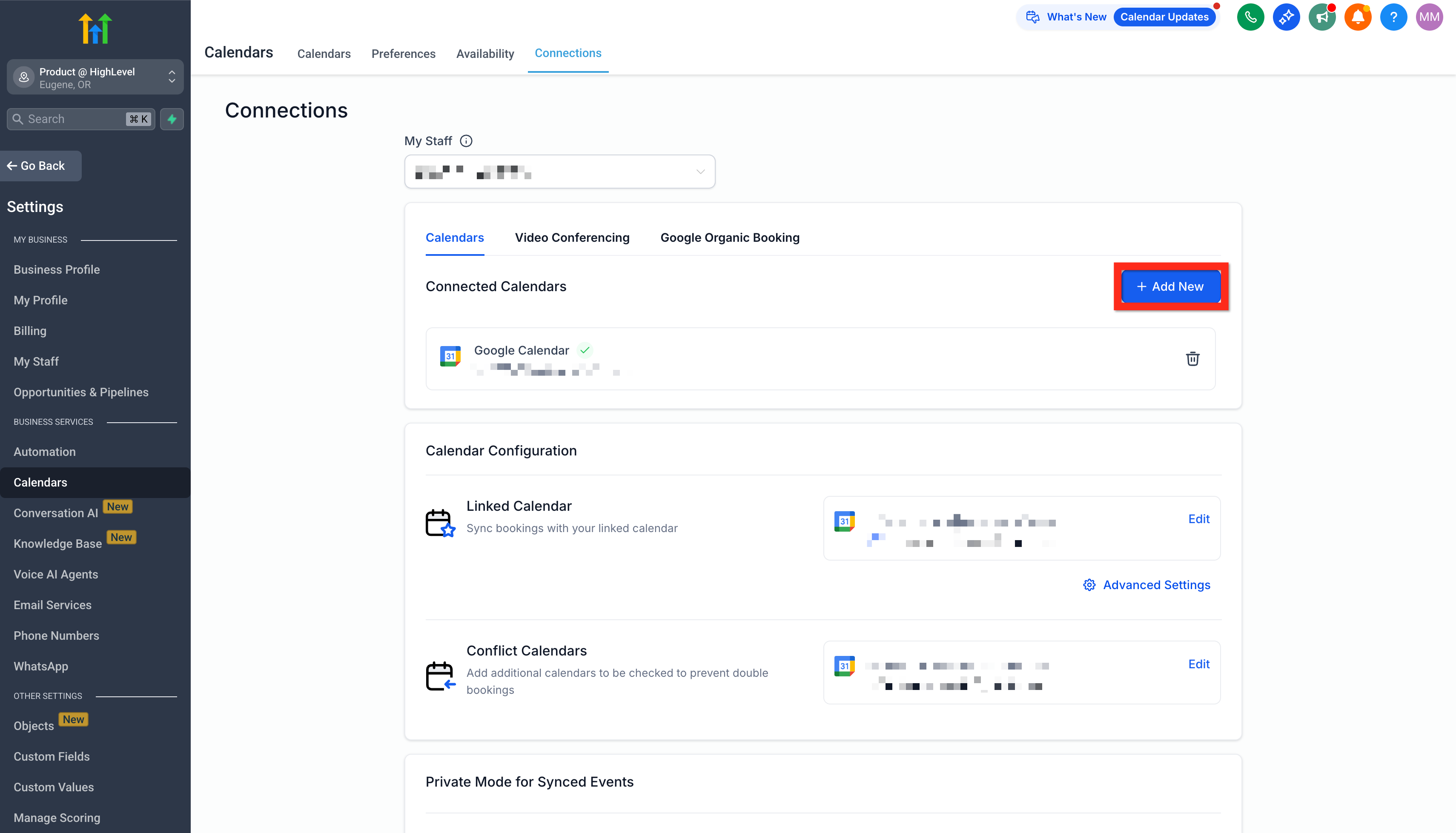
Select the Connections tab and click Add New to connect your personal calendar.
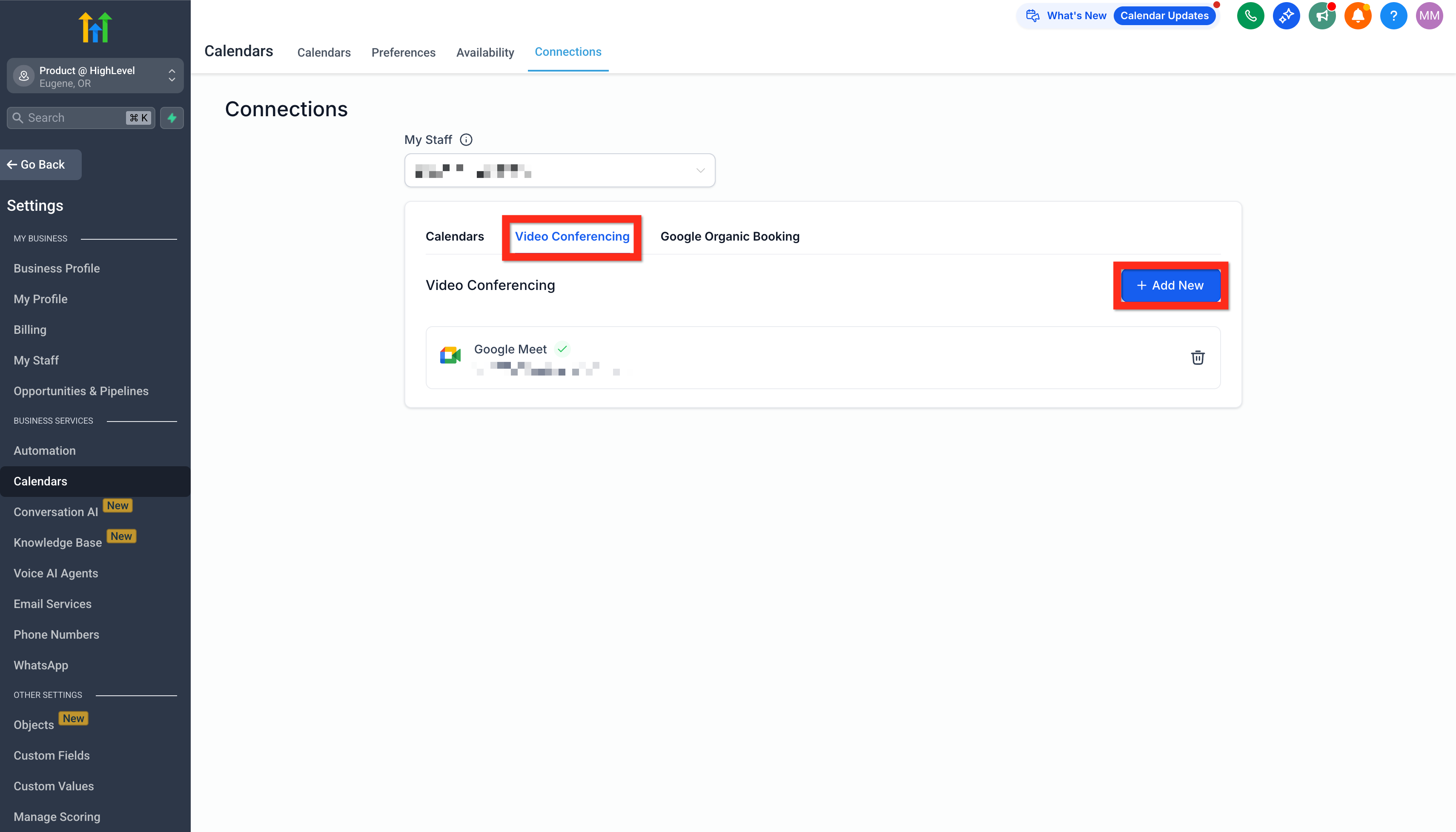
Then select the Video Conferencing tab and click Add New to link your preferred conferencing tool.
Next, double-check that your integrations are syncing properly to enjoy seamless scheduling!
